

As a Network Creator, you can manage basic account and subscription information by signing in to Ning.com. Here you can see a list of your Ning Networks and their active plans. You can also see your invoice history, see your account balance, pay an outstanding balance, and manage your payment methods.
You can get basic information about the plans we offer here.
If you need to update your payment method, you can do so by signing in to Ning.com. You can pay by credit card or PayPal. Just click the “Manage Payment Options” on the “Account Information” tab. “Add A New Payment Method” form is located under your existing payment method options.
You can upgrade your plan or switch between monthly and annual billing by signing in to Ning.com and clicking on the My Networks tab. If you wish to downgrade or don’t see the option you’re looking for, feel free to contact us by submitting a ticket from the “Support” link of your network’s dashboard or get in touch with us via LiveChat. We’ll get back to you once we’ve processed your request. Please note that we’ll back-date changes to plans to the date of your request, regardless of when it’s processed by our team, which will automatically make the appropriate adjustments to your account.
Upgrading a plan will take effect right away. If you’re on a monthly plan, you will receive a prorated invoice for a partial billing period, if applicable. Payments for annual plans will be processed in full at their first billing. Downgrading or canceling a plan takes effect at the end of your billing term. You can get more information about our Billing and Refund Policy here.
You can view invoices for your network by signing in to Ning.com with your account credentials (typically the same email and password you used to create your Ning Network) and clicking on the “Invoice History” tab. On an invoice, you can see:
- a break down of the charges for that service period
- the date the invoice was issued
- the invoice number
- your contact information that we have on file
- the name of your network(s)
- your network’s plan and how it’s billed
- the service period you’re being billed for (you will be invoiced again at the end of the service period listed)
- the amount being billed for each network for that period
- your total new charges for the listed service period
- the total balance due on your account, including other unpaid invoices
Note that any amounts listed in parentheses on your invoice indicate a credit back to your account, and are not charges to your account.
Other notes about the Ning billing system
All of your Ning Networks that are created with the same email address are bundled together in one account and billed on the same date to the same payment method.
If you’ve made changes to your plan on a network, you may receive a prorated invoice that isn’t on your normal bill date. Prorated invoices are charges for a partial service period as our billing system aligns with the changes to your account. When you start a new network, you will receive an invoice for $0.00 showing that your network is in a 14 day trial period and you’re not yet being charged.
If you would like a copy of a previous invoice, sign into Ning.com and click on the “Invoice History” tab.
Each time we attempt a charge on your account for an outstanding balance on an invoice and we aren’t able to collect payment, you will receive an email notification of a declined payment. Our billing system will automatically retry charge attempts on an account with an outstanding balance until the account is paid in full.
You can learn what steps to take to if you’re receiving notices of declined payments here.
If you have an outstanding balance on your account or are seeing a box with a warning on Ning.com, you can update your payment information or process a payment by signing in to Ning.com with your Network Creator email address.
If you think you were charged in error, we’d be more than happy to help resolve this issue. Contact the Help Center by submitting a billing ticket from the “Support” link of your dashboard, call us or contact us via LiveChat before disputing the charge with your credit card company or PayPal.
We can oftentimes quickly and easily explain a charge or correct an issue if contacted. However, once you dispute a charge with your credit card company or PayPal, the issue is out of our hands. The credit card company or PayPal will put a hold on your funds until they’ve completed their investigation, so we can no longer assist with any necessary adjustments.
Furthermore, simply canceling a credit card or PayPal account to prevent further charges also prevents Ning from issuing any refunds or making other adjustments to your account, if necessary, and could result in your network being closed.
You can cancel your network within fourteen days of creating it by signing in to your account at Ning.com and clicking on the My Networks tab, and then clicking on the “Cancel a Free Trial” link. After fourteen days, you’ll still be able to cancel your network subscription by creating a support ticket from your network dashboard.
Please note that you will continue to be charged until you submit a request to cancel your network’s plan.
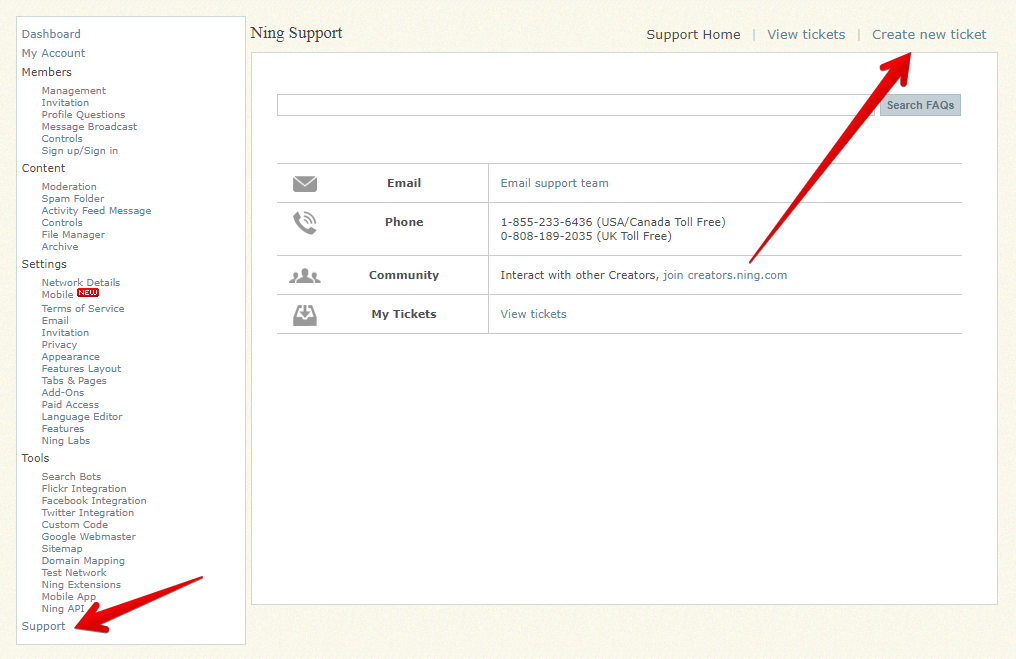
If you still have questions about your billing account, we’ll be more than happy to help. You can submit a ticket by clicking on the green administrative toolbar to expand your options. Click on the first icon for the Social Site Manager and click the “Support” link near the bottom of the left-hand column.
Then click on the “Create new ticket” link, select “My Account” from the drop-down menu and describe the issue you’re running into below.
For billing issues, we appreciate it if you can include as much information as possible so we can best resolve the issue for you quickly. This information may include, but isn’t limited to:
• writing to us from the email address you used to create your Ning Network
• a link to your network(s)
• an invoice number
• charge amount and date
• name on your credit card and the last four digits of the card
• PayPal billing ID and email address (if applicable)
Once you’ve contacted us, we may ask for information from your credit card statements or PayPal correspondence, so have those handy and ready to attach to your reply as a file or screenshot. Be sure to gray-out any confidential information before sending it to us.
Once we receive your question, we’ll get back to you and resolve the issue as quickly as possible.
 facebook
  twitter