

When you create a Ning Network, you will receive all notification emails by default. If you’re not receiving email notifications for your network, or if invitations aren’t being sent, there are several steps you can take to diagnose the problem.
1. Check your settings.
The first step in troubleshooting notifications is to make sure your settings are correct. Check your current settings by signing in, accessing your My Page and clicking “Settings” in the right hand column. Select the “Email” link on the left. Ensure that all boxes are checked for the notifications you want to receive. By default, your settings will look like this as a Network Creator:
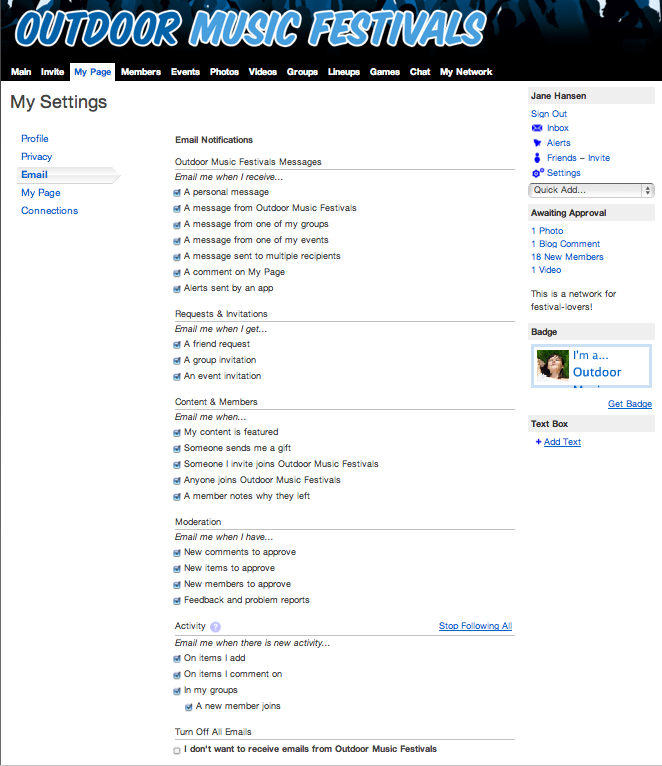
For members, these settings should look like this. Ensure that the last box, which turns off all emails from your Ning Network, is deselected.
If all of these boxes except the last one are checked, your Ning Network will send you notifications for every action described in this list.
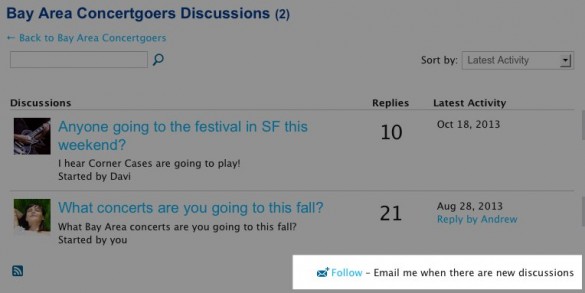
Email notifications for new content or specific discussions will also need to have been opted into, which is done by clicking on the “Follow” link that displays on the page in question. See “Get Notified When New Content is Added” and “Keep Updated on Your Group’s Activity” for more information.
If you’re still not receiving notifications, head to step 2.
2. Ensure that your email is not going to a spam or junk mail folder in your web-based email or email client.
Since your Ning Network may send a great deal of messages to you, your email provider may think that these messages are unsolicited “spam” email or block them completely. Depending on the service or client you use, your networks’ messages may be filtered to a folder called “Junk,” “Junk Mail,” “Spam,” or even straight to your Trash folder. Check inside these folders to see if any messages sent from your Ning Network are present. If there are any messages, make sure that you mark them as “Not Spam” or “Not Junk” so that your email client knows that future messages from your network are valid. Once this is done, head to step 3.
3. Ensure that the email addresses your Ning Network uses are not blacklisted in your email client, ISP or your company firewall.
Your Ning Network sends email from 4 different addresses, which change based on whether you’re using a mapped domain or not:
- mail@network.ning.com (or mail@domain.com). This email address is for general messages such as comments on items you add, replies to forum discussions, and notifications that you have received a message.
- do-not-reply@network.ning.com (or do-not-reply@domain.com). This email address is used by the Broadcast Message function as well as for notifications of new items on your Ning Network.
- share@network.ning.com (or share@domain.com). This address is used when members share content to other members or non-members.
- invitations@network.ning.com (or invitations@domain.com). This address is used for invitations to your network and invitations to specific groups and events on your network.
These addresses are different for each network and use your Ning Network’s subdomain (such as mail@testnetwork.ning.com) or your custom domain (share@mygreatdomain.com). Make sure that none of these addresses are blocked by your email provider, ISP or company firewall.
You can also add these addresses to your trusted contact list (whitelist) to ensure messages sent from them are delivered correctly.
4. Change your email address to see if notifications arrive
As a last resort, you can change your email address to a new email address by following these steps.
Invitations
To ensure that emails are delivered and uphold a superior email delivery reputation, there are some limitations on invitations sent from your Ning Network to non-members. For Ning legacy Mini networks, only the Network Creator can send invites. For Ning Plus networks, the limit is 5,000 invitations per month; for Ning Pro, it’s 10,000. Moreover, members can be limited to a certain number of invitations per day (200 maximum).
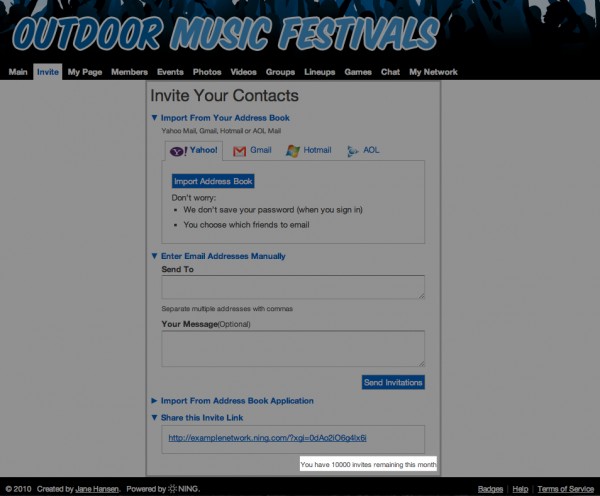
When you are on the invitation page, you’ll see a count of how many invitations you have left for this month. If you’ve already sent your quota of invitations, you won’t be able to send further invitations until the first day of the next calendar month.
Many of the troubleshooting steps described above for email notifications are applicable to invitations. Since you and your members may be inviting people who have never received a message from Ning, these messages may be blocked or go straight to a Junk Mail folder. Prospective members can follow the same steps above to ensure they receive invitation emails. As a further workaround, you can send a personalized message from your email (rather than from your Ning Network) that contains the invitation link. This is especially useful for private, invitation-only networks.
Note: Invitations you send to an email address that has already registered for your Ning Network will not be sent.
 facebook
  twitter