
Ning Help Center
  • Home
    • Looking for the Ning 3.0 Help Center?
  • Starting
    • Creating a Network
    • Custom Domains
    • Social Sharing
    • Making Money
    • More >
  • Features
    • Activity Feed
    • Chat
    • Events
    • Forum
    • Groups
    • Photos
    • All >
  • Design
    • The Design Studio
    • Customize Main Page
    • Standalone Pages
    • All About Tabs
    • Developer Mode
    • More >
  • Members
    • Welcoming Members
    • Admins & Roles
    • Members & Privacy
    • Member Profile Pages
    • Paid Access
    • More >
  • Trouble?
    • Troubleshooting
    • Billing Issues
    • Safety Center
    • Contact Us

Current status of the Ning Platform is always available on the Ning Status Blog.

Twitter Facebook
quotes

Introduction to Chat

Posted by Ioana
Share
Tweet

The Chat feature allows you to participate in a live chatroom as well as private chats with other members of your Ning Network. The Chat feature is a quick indicator of how active your Ning Network is, and the real-time communication is a fun and easy way for members to participate in the Ning Network.

To add Chat to your network, just navigate to the My Network tab and click on the “Features Layout” link. Drag the Chat feature to the center column of your main page layout to add it. Be sure to save your changes before leaving this page.
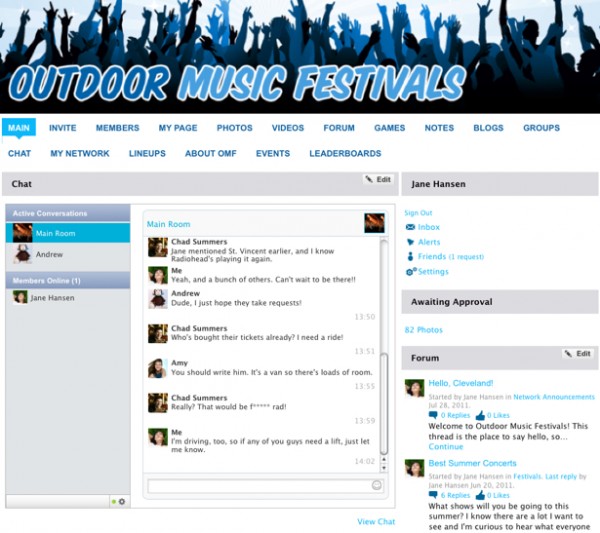
The Chat feature is written for HTML5 and will appear as a persistent chat bar, displaying on every page of your network. To change how Chat appears on the network, go to your Features Layout page in your network dashboard and drag and drop the feature where you want it to appear. Be sure to save your changes.

This HTML5-based Chat allows you to customize the appearance and the language that appears in the chat window, as well as the ability to filter out inappropriate language. Changes you make to your network’s appearance will be applied to the Chat feature, as well.
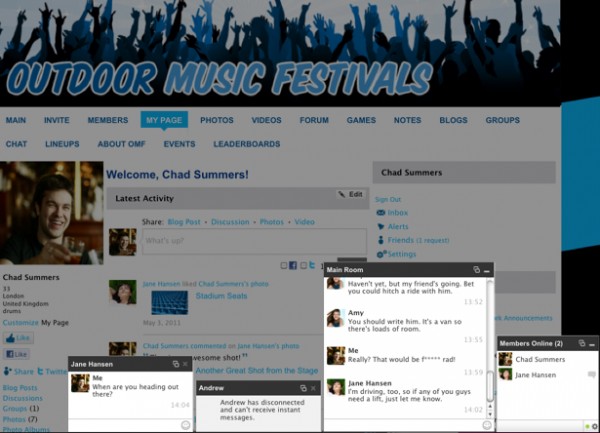
Additionally, members can start private chats with other members on the network, turn sounds on or off, pop out the chat window or disconnect from Chat. Members will also find that they can access Chat on their iPhones, iPads and other devices by clicking to view the regular version of the network.

Network Creators can delete individual messages and suspend members from Chat, as needed. To delete an individual message, hover over the right side of the message and click on the “x” that appears.

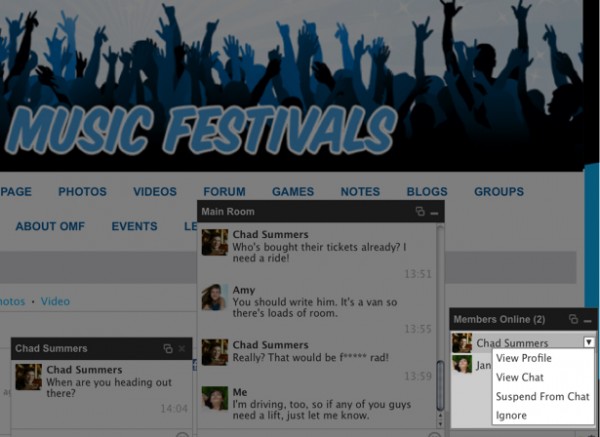
If a member needs to block messages from a particular member on the network, he or she can hover over the member’s name and then click “Ignore” from the drop-down menu that appears.
To customize your network’s appearance, see: Customize Your Ning Network’s Appearance with the Design Studio
To edit the language on your network, see: Introduction to the Language Editor
To filter out inappropriate language on your network, see: Filter Language on Your Ning Network
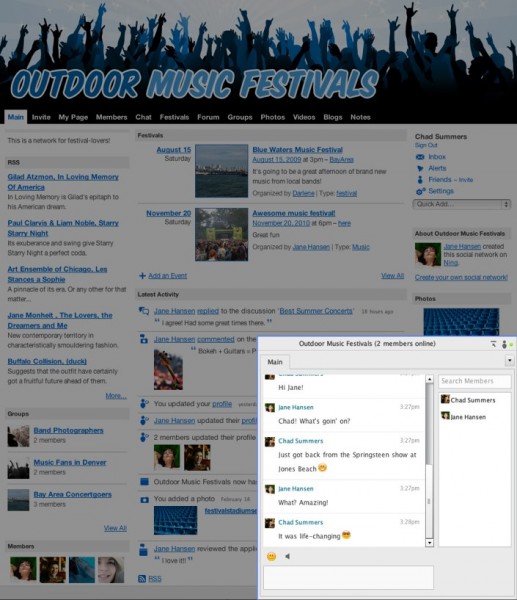
Members can participate in a network-wide chatroom, initiate a private chat with someone, set audio notifications on or off, pop Chat out to a new window, and set their status as “Offline.”

As the Network Creator, you can also clear the message history and even temporarily ban a member from the chatroom.

To use Chat on your Ning Network, either click the name of the Ning Network to pop it into the page, or click the “pop out” button to open it in a new window.

Similar Articles:

  • Get to Know the Chat Bar
  • Moderate Chat
  • Chat with Members
  • Control the Display Options for Chat
  • Introduction to Messages
  • Check Your Private Messages
  • Send a Private Message

Tags: chat, chat bar, control chat, moderate chatroom, online members, private messages

Author Description

Ioana


Comments are closed.

Welcome to Ning 2.0!

This Help Center is for Ning Networks that were created before March 11, 2013. Click here for Ning Networks that were created on or after March 11, 2013 .

Find by Feature

Activity Feed
Add-Ons
Badges
Birthdays
Blog
Chat
Events
File manager
Forum
Gifts
Groups
Invitations
Language Editor
Leaderboards
Messages
Music
Ning Apps
Mobile Version
Notes
Pages
Paid Access
Photos
RSS
Social Sign-In
Text Box
Videos
All Features

Troubleshooting?

Billing Issues
Browser Issues
Domain Mapping Issues
Email Notifications / Invitations
Facebook Sharing App Issues
Facebook Sign In App Issues
Loading Issues
Missing Features and Options
Missing or Deleted Main Page
Ning App Issues
Sign Up / Sign In Issues
Tabs, Pages & Our Apologies
Twitter Issues

Most popular articles

  • Use Your Own Custom Domain
  • Supported Browsers
  • Troubleshoot Browser Related Issues
  • Transfer Ownership of a Ning Network
  • Archive Your Network’s Content
  • Take a Screenshot to Record What You’re Seeing
  • Troubleshoot Domain Mapping Issues

best practices

Whether you’re just getting started or your Ning Network is already up and running, everyone can use a healthy dose of new ideas. We’ve put together some Best Practices studies with examples of how other Ning Networks get people excited and involved. Check them out!

creators

Need some advice? The Creators Network is our customer community, and it’s chock full of interesting tips, ideas, and people who are doing just what you’re doing — building something creative on Ning. All Network Creators and admins are welcome. Join us!

Creators Announcements

  • More styling in the Design Studio
  • Site Manager Updates for Ning 3.0 Networks
  • Watch the Webinar: Content and Community with Richard Millington
  • Mini Release: CSS classes and bug fixes
  • Ning Spring Cleaning Begins This Week

inspiration

If you’re brainstorming about how to best build and grow your network, browse through some of these outstanding examples of popular social websites. Get inspired!

Ning Platform Status

  • All systems go!
  • Intermittent errors on a cluster of networks [Resolved]
  • Intermittent errors on a cluster of networks